
Paver Saver
Paver Saver is a system which allows utility companies, the Kentucky Transportation Cabinet, and county and city public works departments to share information about their work schedules and locations. Paver Saver aims to prevent newly paved roads from being torn up to repair a problem, and then a month later, torn up again in the same spot by a different agency to fix another problem.
The system finds where work schedules and project locations overlap and then notifies these organizations in advance so that they can potentially coordinate their work and save time, money and aggravation while keeping the road in good repair. It has already saved significant sums of money for participants in the short time it has been available. The Paver Saver application is a great example of how geographic data serves as the backbone of a collaborative solution that saves time, money, and resources.

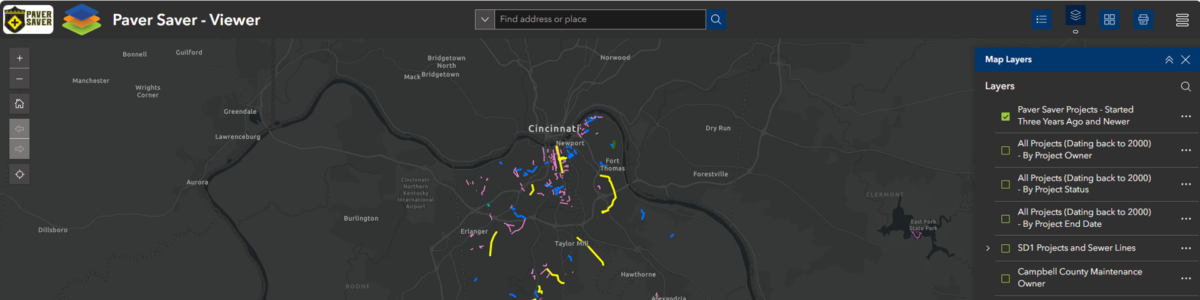
Data Viewer – Web App
Use the Paver Saver Viewer app to see planned and active roadwork projects from utility companies, the Kentucky Transportation Cabinet, and county and city public works departments. You can see where and when each project is scheduled and find overlaps where agencies could coordinate their work. This app is for viewing only. To enter or edit projects, use the Paver Saver editing application.
Training Resources
These PDF guides walk you through Paver Saver step by step. Part One covers entering a new project, and Part Two covers editing an existing one. Open them in your browser to follow along, or download and print them to keep on hand.
- Paver Saver Training Document PART ONE – Entering in a New Project
- Paver Saver Training Document PART TWO – Editing an Existing Project
Training Videos
These short videos show each step on screen. They’re grouped by task and split into small modules, so you can go straight to the part you need. The length of each video is listed next to its title.
Part one – Project Entry Form
- Paver Saver Training PART ONE – Module 1 – Opening the Project Entry Form – 0:48
- Paver Saver Training PART ONE – Module 2 – Navigating the Project Extent Map in the Project Entry Form – 2:16
- Paver Saver Training PART ONE – Module 3 – Creating a Project Line Using the Project Extent Map in the Project Entry Form – 3:41
- Paver Saver Training PART ONE – Module 4 – Entering in the Field Information into the Project Entry Form – 2:57
- Paver Saver Training PART ONE – Module 5 – Exploring the Emails Sent After a Project is Submitted in the Project Entry Form – 3:51
Part two – Data Editor Web Application
- Paver Saver Training PART TWO – Module 1 – Opening the Data Editor Web Application – 1:02
- Paver Saver Training PART TWO – Module 2 – Navigating the Map in the Data Editor Web Application – 1:04
- Paver Saver Training PART TWO – Module 3 – Exploring the Widgets in the Data Editor Web Application – 4:25
- Paver Saver Training PART TWO – Module 4 – Finding a Project in the Data Editor Web Application – 3:06
- Paver Saver Training PART TWO – Module 5 – Editing a Project in the Data Editor Web Application – 3:59
- Paver Saver Training PART TWO – Module 6 – Exploring the Emails Sent After a Project is Edited in the Data Editor Web Application – 4:18
Project Entry Form
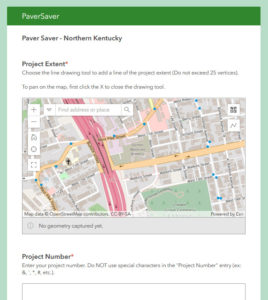
Open the Project Entry Form, where a new project is entered into the database; triggering emails to be sent to contacts for potential coordination of projects.
Data Editor – Web App
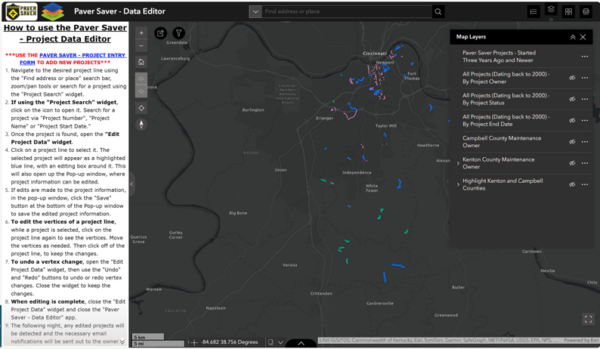
Open the Data Editor Web Application, which enables users to edit existing projects; also triggering emails to be sent to contacts for potential coordination of projects.